Http Webserver
Section 12 HTTP Web Server Control and Command Center
Overview
NextKast offers an HTTP web server feature that allows external commands to be triggered through HTTP requests, providing additional flexibility for remote control and automation of your radio station. This functionality is designed for users who want to execute certain actions or commands remotely via a web browser or external application.
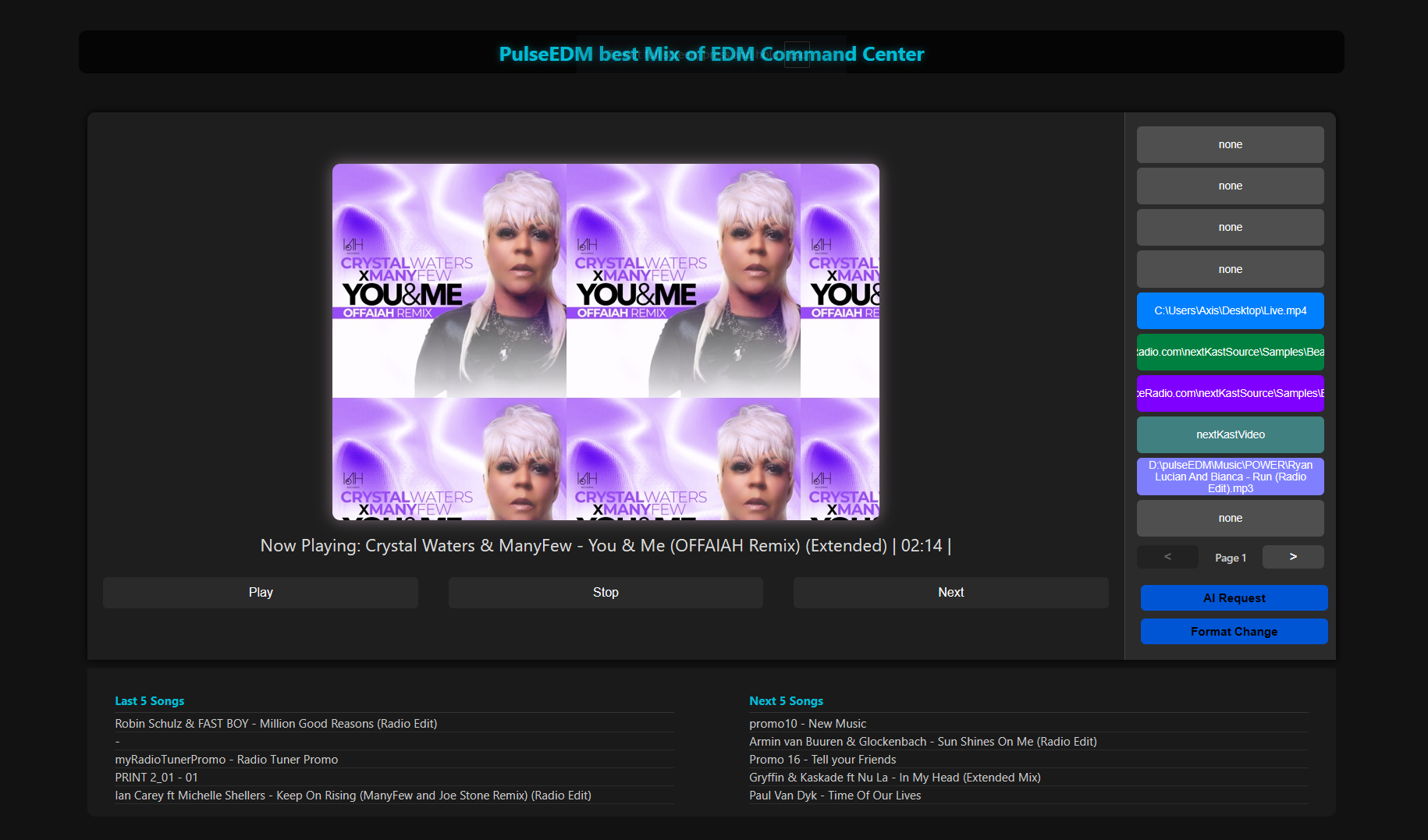
The Command center allows for a status webpage and a user interface for Pds to take simple like control over station without a Radio Automation feel, more like a web control panel
Overview of HTTP Web Server Control
The HTTP web server feature enables you to send commands to NextKast via simple HTTP requests. These commands can control various functions or trigger specific actions within the software, such as starting playback, muting audio, switching inputs, or executing playlist macros.
Setting Up the HTTP Web Server
To use the HTTP web server control in NextKast:
- Enable the HTTP Server:
- Go to the Settings window in NextKast.
- Find the option to enable the HTTP server and turn it on.
- Configure Port and Security:
- Specify the port number (default is 8081) on which the HTTP server will listen.
- Optionally, set up any security measures, such as password protection or IP restrictions.
- Testing the HTTP Server:
- Ensure that the server is running by entering the IP address and port in a web browser.
- Example:
http://machineIP:8081
Sending HTTP Commands
Once the HTTP server is enabled, you can send commands to NextKast using HTTP requests. Commands can control playback, automation functions, and more. Here are some examples of common commands:
- Start Playback: mathematica Copy code
http://machineIP:8081/?Trigger=Start Next - Control Functions:
- Auto Mode:
http://machineIP:8081/?Trigger=Auto Button - Line In:
http://machineIP:8081/?Trigger=Line In - Mute Audio:
http://machineIP:8081/?Trigger=Mute
- Auto Mode:
- Execute Playlist Macros: ruby Copy code
http://machineIP:8081/?MacroName=SendSerialCommand&Argument=1&Notes=theserialcommand&OverrideTime=120
These HTTP requests can be used to create custom interfaces or be triggered directly from any device that supports HTTP requests, such as web browsers, mobile apps, or other web services.
Advanced Control with Playlist Macros
The HTTP web server feature also allows for the execution of playlist macros, which can trigger multiple actions with a single command. For more details on available macros, refer to the section on Playlist Macros.
- Example of a Macro Execution: To execute a macro called
SendSerialCommandwith specific arguments: ruby Copy codehttp://machineIP:8081/?MacroName=SendSerialCommand&Argument=1&Notes=theserialcommand&OverrideTime=120
Applications and Use Cases
The HTTP web server control can be used in various scenarios:
- Remote Station Control: Remotely manage station playback and automation functions without needing direct access to the NextKast interface.
- Custom Dashboards: Create web-based dashboards or mobile apps to control station operations.
- Integration with Third-Party Tools: Use HTTP requests to integrate with other software or services, such as scheduling applications or external automation systems.
By utilizing these HTTP commands, broadcasters can extend their control and automation capabilities, providing more flexibility and remote accessibility.
Command Center
The Command Center gives your station a browser-based screen for monitoring and controlling live playback from a computer, tablet, or other device on the same network. This can be shown in station lobby, or to give Station manager a real time dashboard and Control center for simple live station operations.
The top of the screen shows your station name and can display your station logo or any custom logo provided during setup. The main display shows what is currently playing, including song title, artist, album artwork when available, and time remaining. The lower section shows the last five songs played and the next five songs scheduled.
Use the main playback controls to operate the station:
Play starts playback.
Stop stops playback.
Next advances to the next scheduled item.
The Sample Buttons on the side of the screen are used to play assigned station audio such as liners, sweepers, sound effects, promos, or quick-access carts. Use the page arrows to move through additional banks of sample buttons. Buttons may change color or highlight while audio is active.
Use AI Request to search for a song, select the type of AI break, enter the script or announcement, and submit it to the station system.
Use Format Change to schedule a temporary programming change. Select the rotation, choose the start time, enter the duration in hours, add a name or note, and click Apply. This is useful for special programming, weekend blocks, holiday formats, or temporary schedule changes.